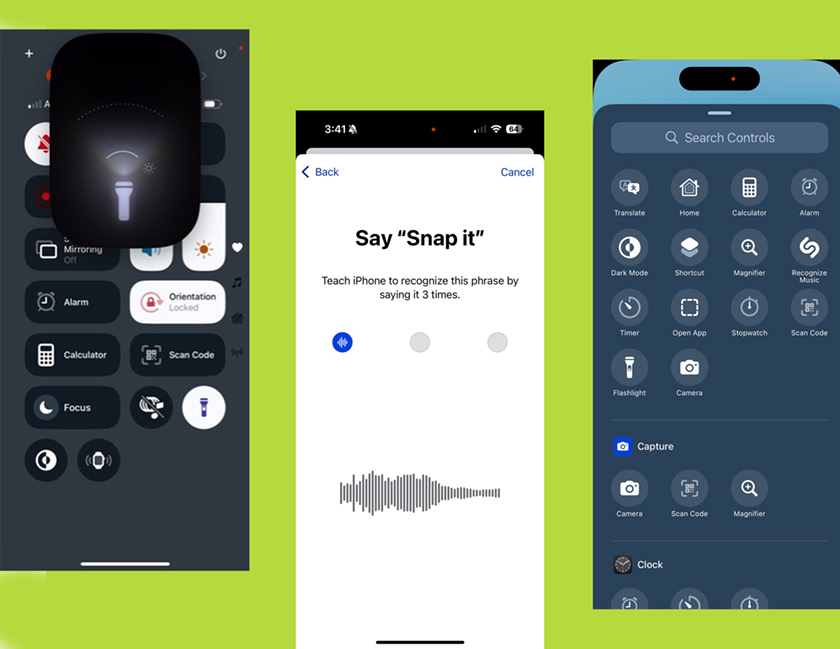
Here’s a quick rundown of some of my favorite features from iOS 18.
I downloaded the public beta about three weeks ago and have been having a blast testing out all the new stuff. Here are a few highlights. These will be super easy to use once iOS 18 is officially available for everyone in mid-September
How to Change the Lock Screen Controls
Until now, the only controls you could access on your Lock Screen were the flashlight and camera. But with iOS 18, you can finally switch those up! If you’re like me and keep accidentally turning on the flashlight or snapping photos of your photos, this will be a game-changer.
Here’s how to customize them:
- Wake Up Your iPhone – Tap the screen, press the side button, or use “Raise to Wake”. No need to unlock it—just get to the Lock Screen.
- Long-Press on the Lock Screen – Hold your finger on the Lock Screen wallpaper for a second or two until you feel a slight vibration. You’ll see the screen enter edit mode, similar to customizing your Home Screen.

3. Tap “Customize” – Once in edit mode, tap Customize at the bottom of the screen. This will open a menu where you can tweak your Lock Screen settings.

4. Edit the Lock Screen Controls – Now, you can change or remove the quick access buttons. Want to get rid of the flashlight or camera shortcut? Just tap on one one and swap it for something else.

5. Change or remove quick access buttons: Want to ditch the camera or flashlight shortcuts? Just tap on one of them and choose a different option, or get rid of them entirely.

There are over 50 options to choose from! Right now, I’m using Magnifier and Timer. The Magnifier is a lifesaver when I forget my reading glasses. The Timer comes in handy, too, but. I might change it if I find I’m not using it that much here.
6. Save Your Changes – Once you’re happy with your tweaks, tap Done in the top-right corner, and your updated Lock Screen is ready to go!
Flashlight Enhancements
You can still access the flashlight from the Lock Screen or from the Control Center (swipe down from the top right of your screen). But now, you can now adjust the beam’s width. Just tap the flashlight icon, then swipe to make the beam wider or more focused. Swipe up or down to change the brightness too. Super useful!


Voice Shortcuts
This new feature under Accessibility is awesome for anyone. You can trigger actions on your phone with simple voice commands. There is no need to dig through settings or open Control Center. Setting it up is quick and easy, and it can make everyday tasks so much smoother.
- Open the Settings app and navigate to Accessibility

2. Scroll down to Speech and select Vocal Shortcuts.

3. Tap “Set Up Vocal Shortcuts” on the next screen.

4. You may customize a Siri request, use a shortcut, activate functions in the Control Center, or open a favorite app. I want a vocal shortcut to take a screenshot. As I start typing in Screenshot, it shows a variety of options that begin with the letter “S”. I choose “Screenshot”, and I’m ready for my first vocal command.

5. Now I need to define my “trigger” phrase. I decide to use the phrase “Snap it”, so I type that in.

6. Now I’m asked to speak that phrase three times as it is recorded.

7. Now, anytime I say the phrase ” Snap it”, my phone will immediately take a screenshot. I don’t need to remember which buttons to press!

With iOS 18 officially launching in just a few weeks, now’s the perfect time to start thinking about which Voice Shortcuts will make your phone experience even better.
Oh, and don’t forget – Apple’s iPhone 16 event is on September 9. That’s also the date will learn when iOS 18 is ready for everyone to download!


Leave a Reply